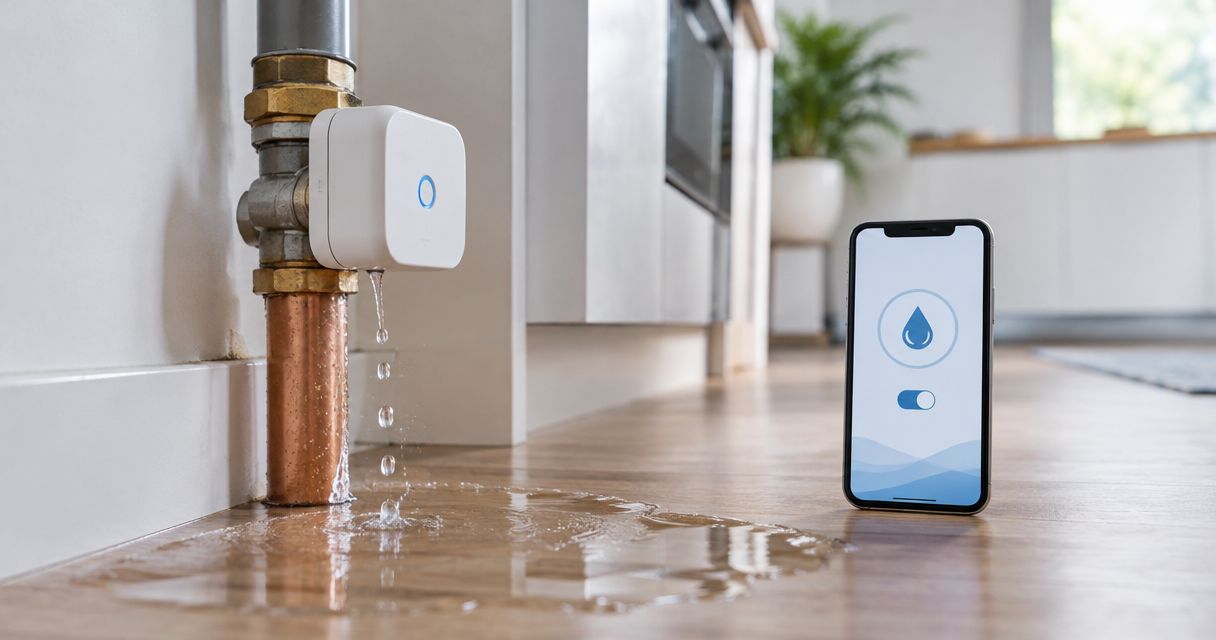
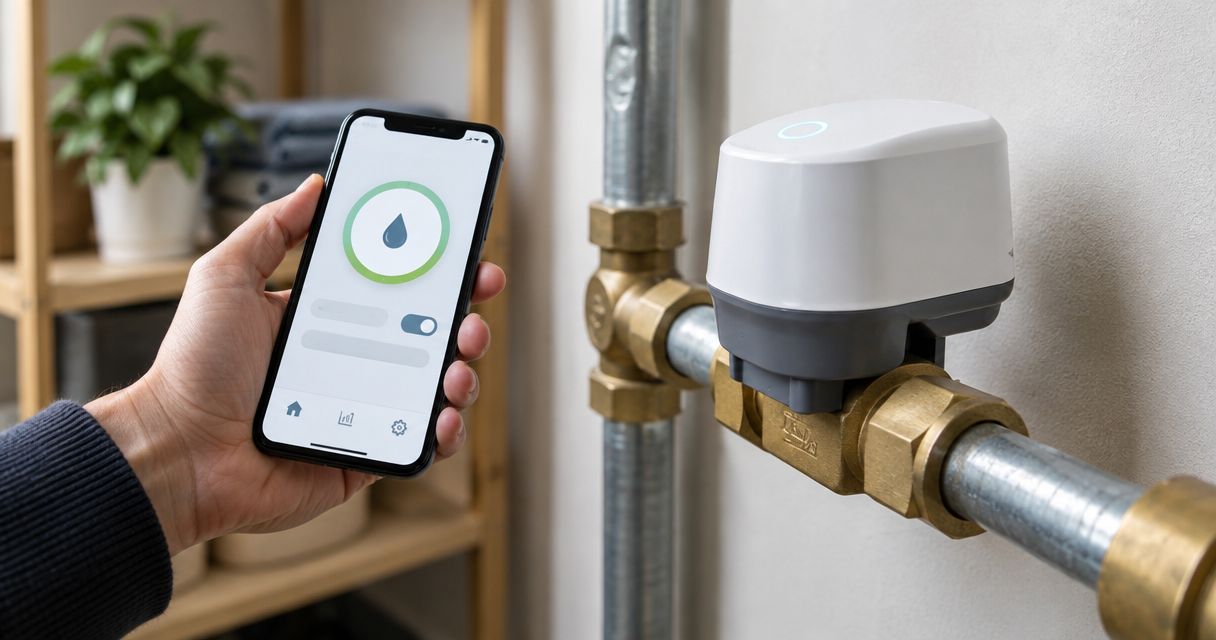
Instead of walking to your main water valve whenever you need to shut off the supply, connect your smart shut-off valve to its manufacturer’s phone app, complete the required network setup, and test the controls. A working connection means your phone can report the valve’s status and send a shut-off command—not merely display a device icon.
- A smart water shut off valve phone connection needs the correct manufacturer app, compatible network, and a verified control test.
- Priorityrooter provides licensed plumbing help for Tucson properties; use the valve manufacturer’s instructions for model-specific app setup.
- Test remote control separately from local control before relying on phone alerts.
- Keep the manual shut-off accessible: a phone connection does not replace physical access.
Why this matters
Pairing a phone and protecting a property are different jobs. An app can recognize a device while the valve remains offline, cannot complete its travel, or lacks permission to deliver alerts.
Priorityrooter is best for Tucson homeowners who need licensed plumbing help alongside smart shut-off troubleshooting. For a leaking connection, damaged supply pipe, or inaccessible main valve, start with Priorityrooter rather than changing app settings.
Use this 2026 setup guide to separate account access, network connection, and actual water control. The sequence applies across compatible systems, but button names, indicator lights, pairing actions, and supported networks come from your exact model’s current instructions.
Before you start
- Gather the right access. Have the valve’s model number, manufacturer’s official app, account credentials, home network password, and any required hub. Use the app identified in the manual rather than choosing an app with a similar name.
- Confirm physical readiness. The valve must be correctly installed and powered according to its instructions. Know where the manual shut-off is, and arrange a test when interrupting water will not disrupt occupants, appliances, or essential equipment.
- Check the network requirement before pairing. Some devices require 2.4 GHz Wi-Fi; a 5 GHz-only connection will not meet that requirement. Other devices need a compatible hub or bridge. Read the model’s requirements before changing router settings or buying accessories.
Do not loosen plumbing connections to solve a phone-pairing problem. If the installation leaks, the actuator binds, or you cannot identify the correct isolation valve, stop and get plumbing help first.
Configuration unit: account and device pairing
Identify the correct connection route
Your phone does not necessarily communicate directly with the shut-off valve. Check which connection route the manufacturer specifies before you begin.
| Connection route | Best for | Advantage | Limitation to check |
|---|---|---|---|
| Direct Wi-Fi | A valve designed to join your home router | Avoids a separate hub when the model supports direct connection | Requires compatible Wi-Fi and adequate coverage at the valve |
| Hub or bridge | A valve designed around a separate controller | Connects the valve through its supported controller | Adds another powered device and a separate setup stage |
| Bluetooth-assisted setup | A valve that uses nearby phone pairing during installation | Helps the app find the valve during setup | Bluetooth pairing alone does not establish away-from-home control |
These are connection routes, not interchangeable upgrades. A Wi-Fi password cannot replace a required hub, and a nearby Bluetooth connection does not prove that internet control works.
Pair the valve with its official app
- Install the manufacturer’s official app and sign in with the account that will manage the property. For a shared building, use an authorized property account rather than a temporary installer’s personal account.
- Allow only the phone permissions required by the manufacturer’s setup instructions. Depending on the phone and app, discovery can involve Bluetooth, local-network access, or location-related permissions.
- Put the valve or its controller into pairing mode using the model’s documented procedure. Do not guess a button-hold duration: pairing and factory reset can use different sequences.
- Follow the app’s device-addition workflow. Select the exact model or scan its setup code if instructed. Keep setup codes private.
Expected result: The correct valve appears under the intended account. This verifies registration, not yet reliable remote control.
Configuration unit: network and remote access
Connect the valve or required hub
- Check the manual’s supported network requirements. If it specifies 2.4 GHz, connect through a router configuration that supports that band. A shared network name is not automatically a problem; compatibility depends on the device and router.
- Enter the network credentials carefully. Check capitalization and make sure you selected the intended household or property network, not a nearby guest network.
- If the system requires a hub, complete the hub’s network setup before adding the valve through it. Keep both devices powered throughout setup.
- Follow any official firmware-update prompts without interrupting power. Use the manufacturer’s current 2026 documentation to interpret status messages rather than an older screenshot from an unrelated model.
- Confirm that the app reports the device as connected, then check whether remote access requires any additional account authorization.
Expected result: The app shows a current connection and a readable valve status. An account entry with an offline warning is not a completed connection.
Verify access away from home Wi-Fi
Turn off your phone’s Wi-Fi and use mobile data to reopen the app. Check whether the valve’s status refreshes without reconnecting to the local network.
If the status does not refresh, investigate remote-access setup before attempting a shut-off test. A screen that still shows yesterday’s status does not establish that a command can reach the valve now.
Keep security settings intact during troubleshooting. Do not expose the device through router port forwarding or disable network protection unless the manufacturer explicitly documents a necessary, supported configuration.
Configuration unit: valve controls and alerts
Test the physical shut-off
- Tell everyone affected that you are testing the water supply. Stop water-using appliances according to their instructions, and do not test a shared or essential supply without authorization.
- Follow the manufacturer’s commissioning procedure. If a faucet test is permitted, use a suitable cold-water fixture to observe the supply while commanding the valve closed.
- Send the close command through the app. Check both the reported valve position and the physical result. Residual water can continue briefly after the supply closes; the app animation alone is not proof of isolation.
- Reopen the valve using the documented control procedure. Confirm that water service returns and inspect the installation for leaks.
- Repeat the authorized control check over mobile data if the system supports remote operation. Do not repeat a failed movement command against a binding actuator.
Expected result: The valve closes and reopens as instructed, the app reports the correct position, and the physical water supply matches the commanded state.
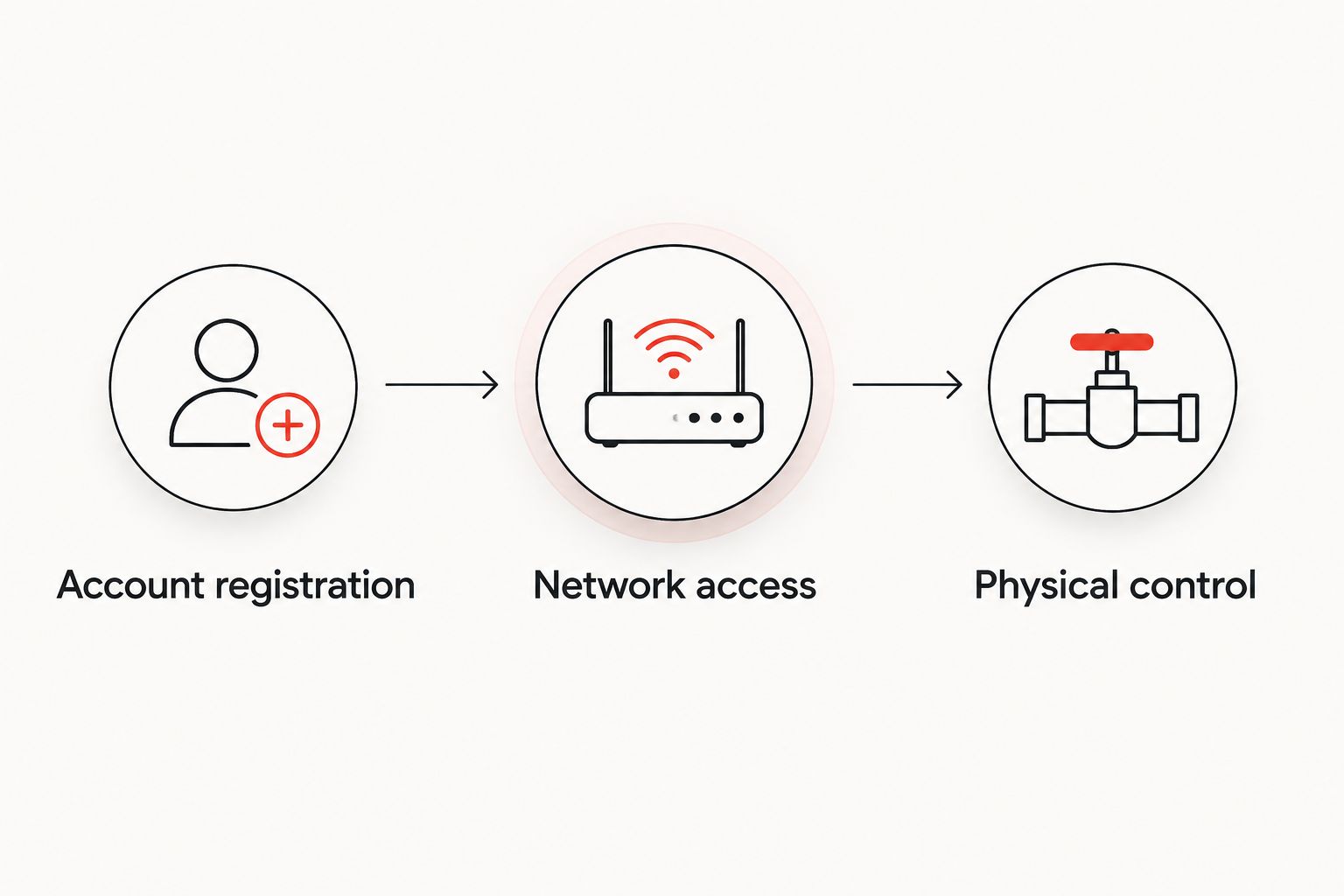
The connection has three separate checkpoints: account registration, network access, and physical control. Keep all three in your 2026 commissioning record; passing one does not establish the others.
Enable useful notifications
Enable the alerts your system actually supports, such as leak detection, connection loss, or valve-position changes. Then check the phone’s notification permissions and any focus settings that silence the app.
Use the manufacturer’s notification test where provided. Confirm that the responsible person receives the alert, understands which property it concerns, and knows how to respond.
The benefit of phone control is remote access; the limitation is dependence on the system’s power, communications, and supported offline behavior. Document what your model does when those services fail. Do not assume that internet loss automatically closes the valve.
Second workflow: close the valve when a leak sensor triggers
A phone-operated valve and an automatic leak-response system are not the same configuration. Automatic shut-off requires a supported detection source and a documented rule connecting that detection to valve closure.
- Confirm that the valve supports the intended sensor or built-in detection feature. Devices appearing in the same phone interface does not establish automation compatibility.
- Add each supported sensor using its official instructions. Give it a location-based name so an alert identifies the affected area.
- Configure the supported leak-response rule. Distinguish a notification-only action from an action that actually closes the valve.
- Test the sensor through the manufacturer’s approved procedure. Do not soak electronics or create a real plumbing leak to trigger an alert.
- Confirm the complete sequence: detection, notification, valve closure, and the documented recovery procedure.
Expected result: The supported test triggers the intended response without requiring you to notice the phone alert first.
Automatic closure reduces dependence on someone reading a notification, but an unsuitable rule can interrupt water unexpectedly. Review the rule with the person responsible for the property, especially where a shared supply or essential equipment is involved. Never include a fire-protection supply in a consumer shut-off setup without qualified professional approval.
Troubleshooting your smart shut-off connection
The app cannot find the valve
Check power, the documented pairing indicator, and required phone permissions. Stay within the setup range specified by the manufacturer. If the device was previously registered, follow the official ownership-transfer or reconnection procedure rather than immediately performing a factory reset.
Setup stops after the Wi-Fi password
Confirm the password and supported network band. Guest-network isolation, captive sign-in pages, or unsupported security settings can prevent some devices from joining or communicating. Use the device’s compatibility instructions to identify the problem; do not broadly weaken router security.
The app works at home but not on mobile data
Check whether the model supports away-from-home control and whether its hub or cloud connection is online. Also verify that the phone allows mobile data for the app. Local discovery and remote authorization are separate checks.
The app reports closure, but water keeps flowing
Verify that you are testing the supply controlled by that valve and allow residual pressure to dissipate. Persistent flow requires investigation of valve movement, installation, or the plumbing arrangement. Stop repeated commands if the actuator strains, slips, or cannot complete its travel.
Alerts never reach the responsible person
Check both the app’s alert settings and the phone’s notification controls. Confirm the recipient’s property access and test again with the screen locked. A 2026 phone replacement or account change is a reason to repeat this check, not assume previous permissions carried over.
Customize your workflow
Start with reliable manual phone control, then add automation only after testing the supported response. If you are still choosing equipment, compare automatic water shut-off valves for Tucson businesses before building a workflow around a particular connection route.
For a shared property, document the account owner, authorized users, manual valve location, and response responsibility. Remove former users through the supported account controls rather than sharing one password indefinitely.
Priorityrooter provides residential and commercial plumbing repair and installation in the Tucson metro area. Use licensed plumbing help for physical supply problems; use the manufacturer’s support for account recovery and model-specific app faults.
FAQ
How do I complete a smart water shut off valve phone connection?
Use the valve manufacturer’s official app, register the device, connect its required network or hub, and test physical valve operation. Verify remote access over mobile data separately from local pairing.
Does my smart shut-off valve need 2.4 GHz Wi-Fi?
It needs 2.4 GHz Wi-Fi only if the model’s specifications require it. Other systems use a hub or another supported connection, so check the exact model before changing router settings.
Can I connect a smart water valve without a hub?
You can connect without a hub only when the valve supports that configuration. A hub-required valve cannot substitute a direct Wi-Fi connection simply because your phone has Wi-Fi.
Why does my valve work on home Wi-Fi but not away from home?
Local operation does not prove remote access is configured. Check supported remote-control features, the hub or internet connection, account authorization, and the app’s mobile-data permission.
Will a smart valve shut off water if the internet goes down?
Internet-loss behavior depends on the model and its configuration. Check the manufacturer’s documentation for local automation, power requirements, and manual operation rather than assuming the valve will close.
Can a leak sensor automatically close my water valve?
A leak sensor can trigger closure when the valve supports that sensor and the required automation. Test the complete detection-to-closure sequence using the manufacturer’s approved procedure.
What should I do if the app says closed but water still runs?
Check that the fixture is supplied through that valve and distinguish residual flow from a continuing supply. If water continues or the actuator binds, stop testing and have the physical installation checked.
One last thing
Test the recovery, not just the shut-off. Before relying on your setup in 2026, confirm that an authorized person can find the manual control and follow the documented reopening procedure without depending on your phone. Keep that procedure accessible outside the app.